Skip to content
+88 01309026600
sales@pintechltd.com
8th Floor, 14/A Farmgate, Dhaka 1215, Bangladesh
Home
About Us
Why Choose US
Our Clients
Resource
All products
ERP
PinBuild+
PinSole
PinCraft
PinProfit+
Pin++
PinBook Cloud
PinPMS
PinPOS
PinCRM
Industries
Real Estate & Construction
Leather and Footwear
Foods & Beverages
Agro Farms
Pharmaceuticals (Veterinary)
Plastic & Recycling
Manufacturing
Steel & Aluminum
Power & Energy
More
Automotive & Motorcycle
Tiles & Ceramics
Distribution
Retail
Garments
Travel & Tourism
Trading
Service
Computer & Electronics
Mobile Apps
Paper Industries
CRM
Machineries & Medical Equipment
Services
Custom ERP Development
ERP Consultancy
ERP Implementation & Deployment
Software Maintenance & Support
HRM & Payroll Solutions
Inventory & Supply Chain Management
Accounts & Financial Management
CRM Solutions
News & Events
Blog
Home
About Us
Why Choose US
Our Clients
Resource
All products
ERP
PinBuild+
PinSole
PinCraft
PinProfit+
Pin++
PinBook Cloud
PinPMS
PinPOS
PinCRM
Industries
Real Estate & Construction
Leather and Footwear
Foods & Beverages
Agro Farms
Pharmaceuticals (Veterinary)
Plastic & Recycling
Manufacturing
Steel & Aluminum
Power & Energy
More
Automotive & Motorcycle
Tiles & Ceramics
Distribution
Retail
Garments
Travel & Tourism
Trading
Service
Computer & Electronics
Mobile Apps
Paper Industries
CRM
Machineries & Medical Equipment
Services
Custom ERP Development
ERP Consultancy
ERP Implementation & Deployment
Software Maintenance & Support
HRM & Payroll Solutions
Inventory & Supply Chain Management
Accounts & Financial Management
CRM Solutions
News & Events
Blog
CONTACT US
How to Migrate from Odoo to PinTechERP
Home
»
Blog
»
How to Migrate from Odoo to PinTechERP
Prev
Previous
Finance & Accounting Real Estate ERP Software in Bangladesh
Next
Top 10 Odoo Alternatives ERP in Bangladesh
Next
Search
Search
Best Real Estate ERP Software for Housing Projects
Best Real Estate ERP Software for Land Developers
Best Real Estate ERP Software for Construction Companies
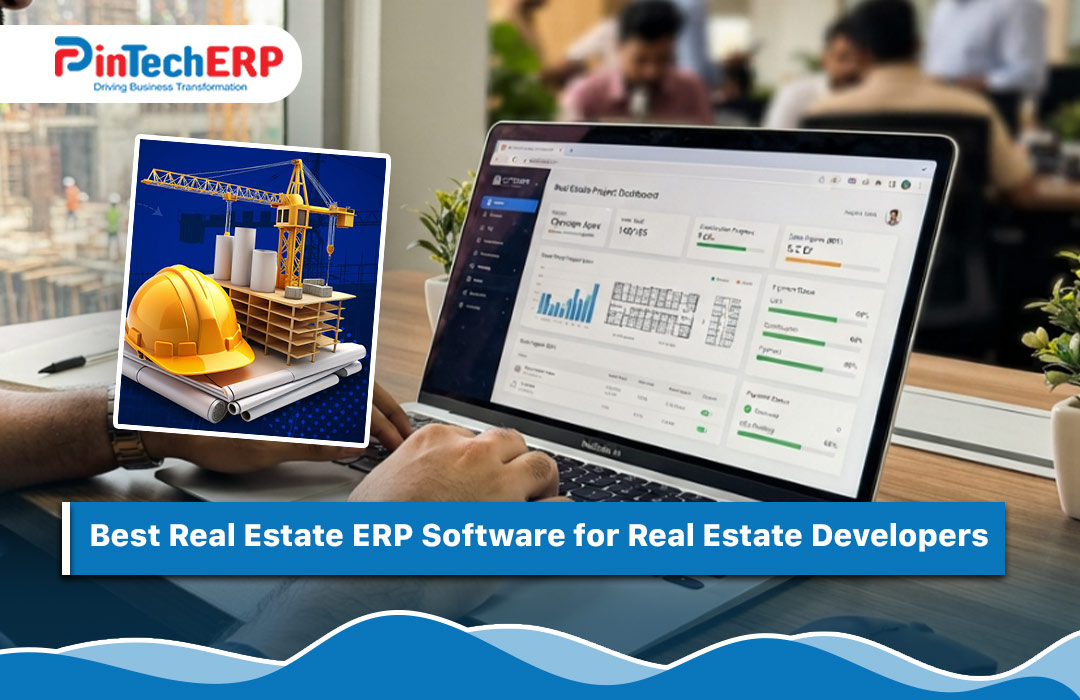
Best Real Estate ERP Software for Real Estate Developers
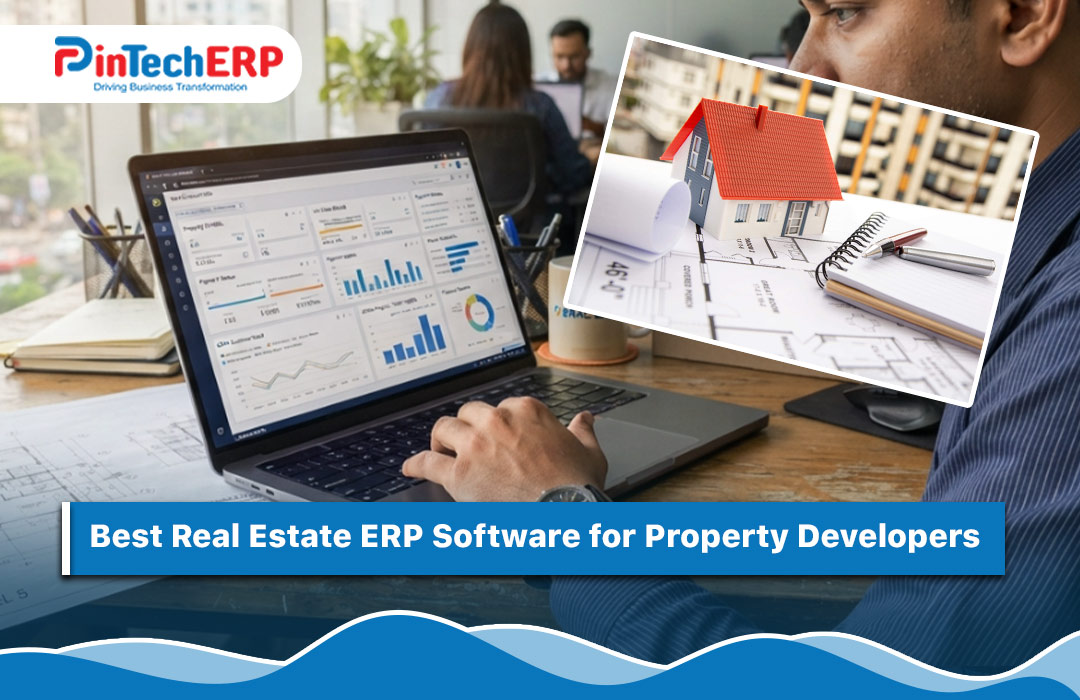
Best Real Estate ERP Software for Property Developers
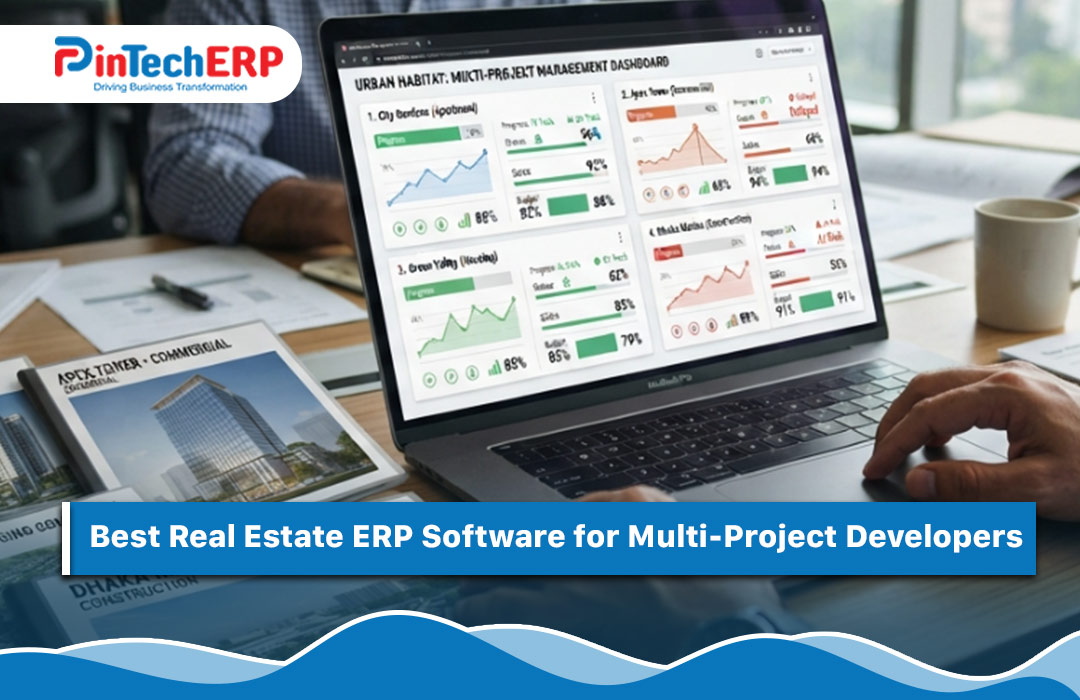
Best Real Estate ERP Software for Multi-Project Developers
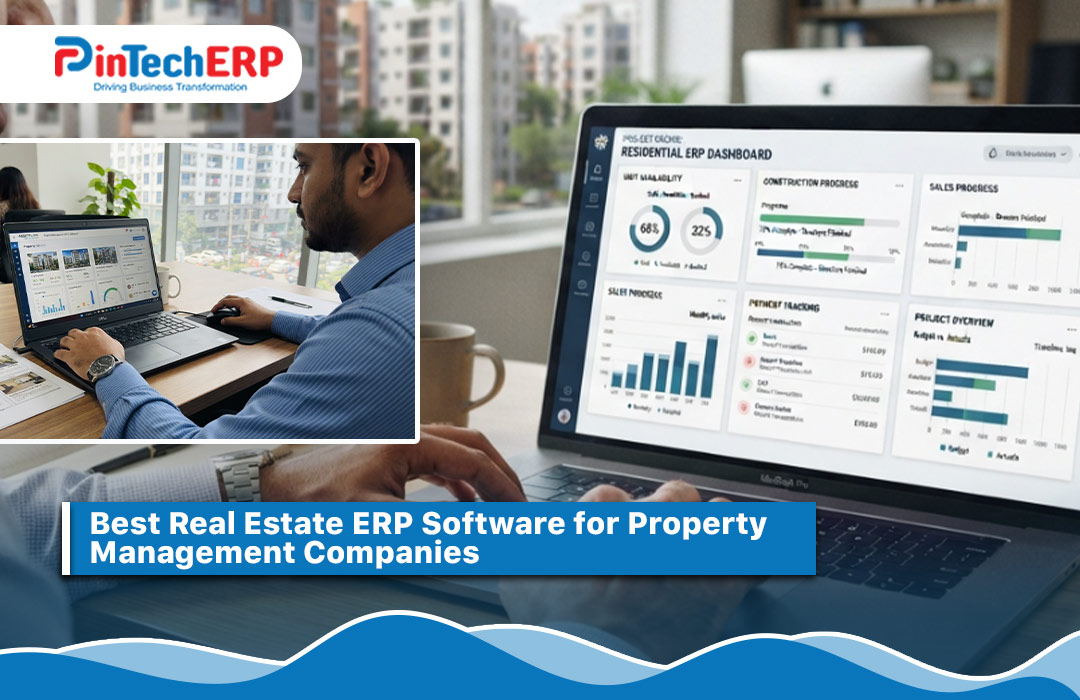
Best Real Estate ERP Software for Property Management Companies
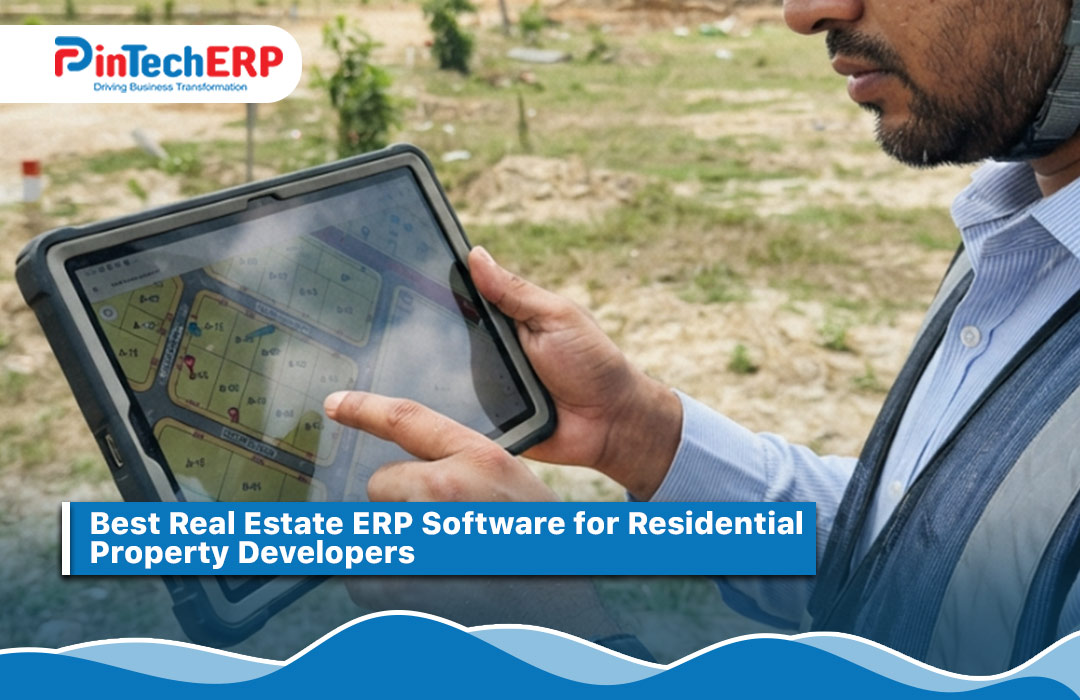
Best Real Estate ERP Software for Residential Property Developers
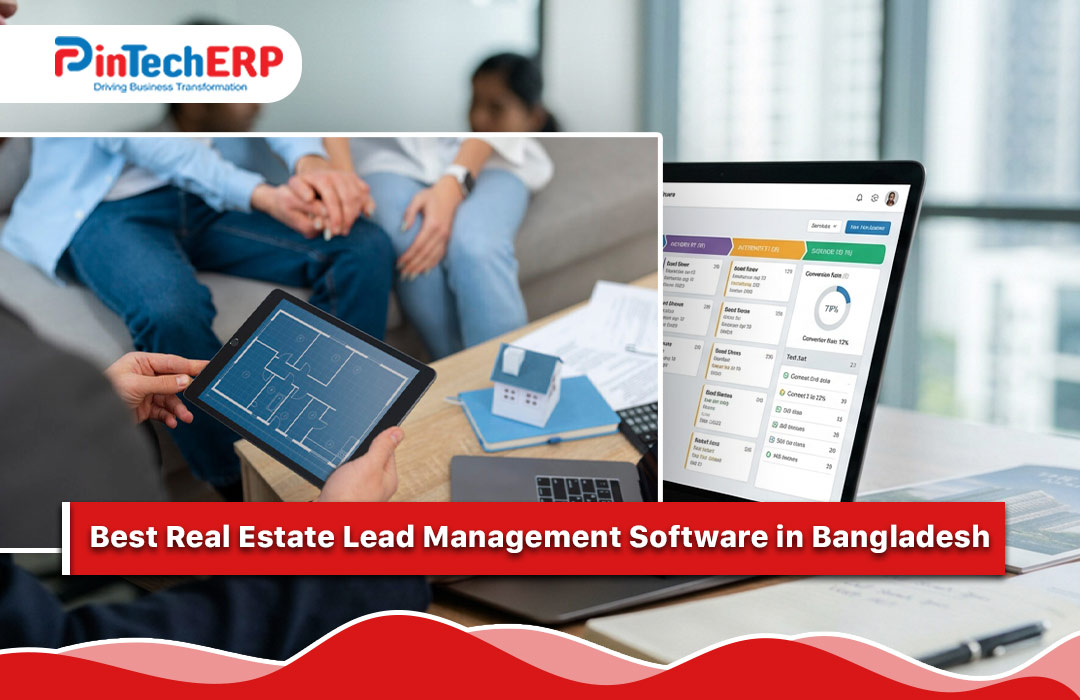
Best Real Estate Lead Management Software in Bangladesh
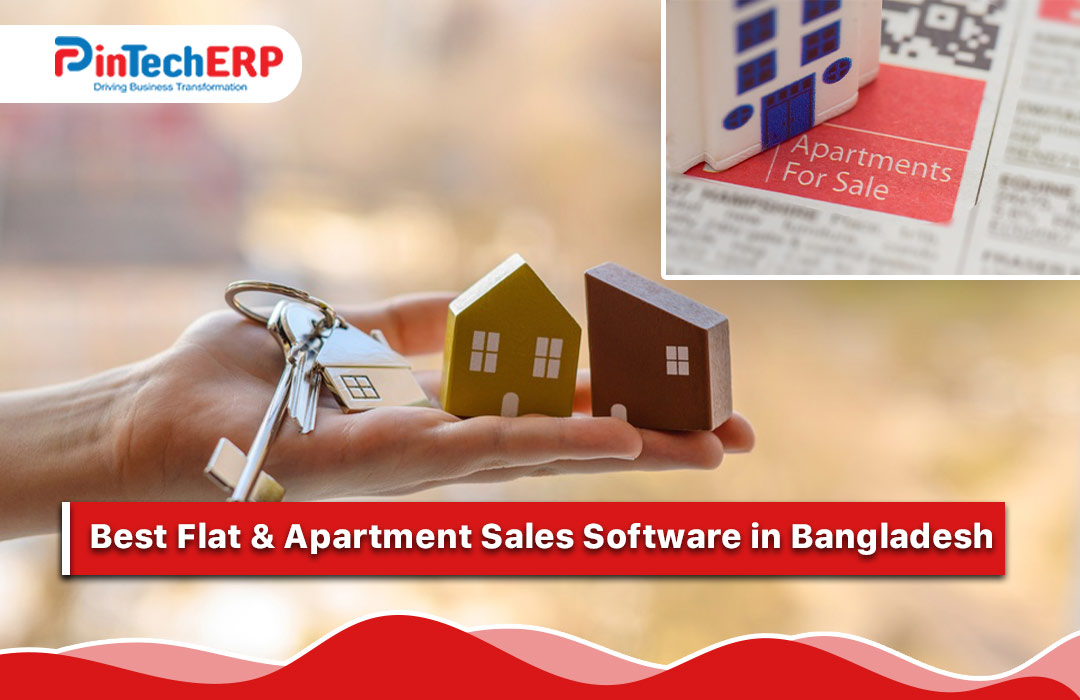
Best Flat & Apartment Sales Software in Bangladesh
Table of Contents
Categories
ERP Software
Events
Highlights
Technologies
Uncategorized
Have Any Question?
Let’s discuss and learn more about our software. Our expert team will contact you as soon as possible.
+88 01309026600
sales@pintechltd.com
Your path to success begins today
Book A Demo
PinTech ERP
Hello
Can we help you?
Chat Now